⚙️IPTV Smarters Pro Guide: Features, Settings and Optimization
Master IPTV Smarters Pro with our ultimate guide. Learn how to configure external players, update EPG lists, and optimize buffers for smooth 4K streaming.
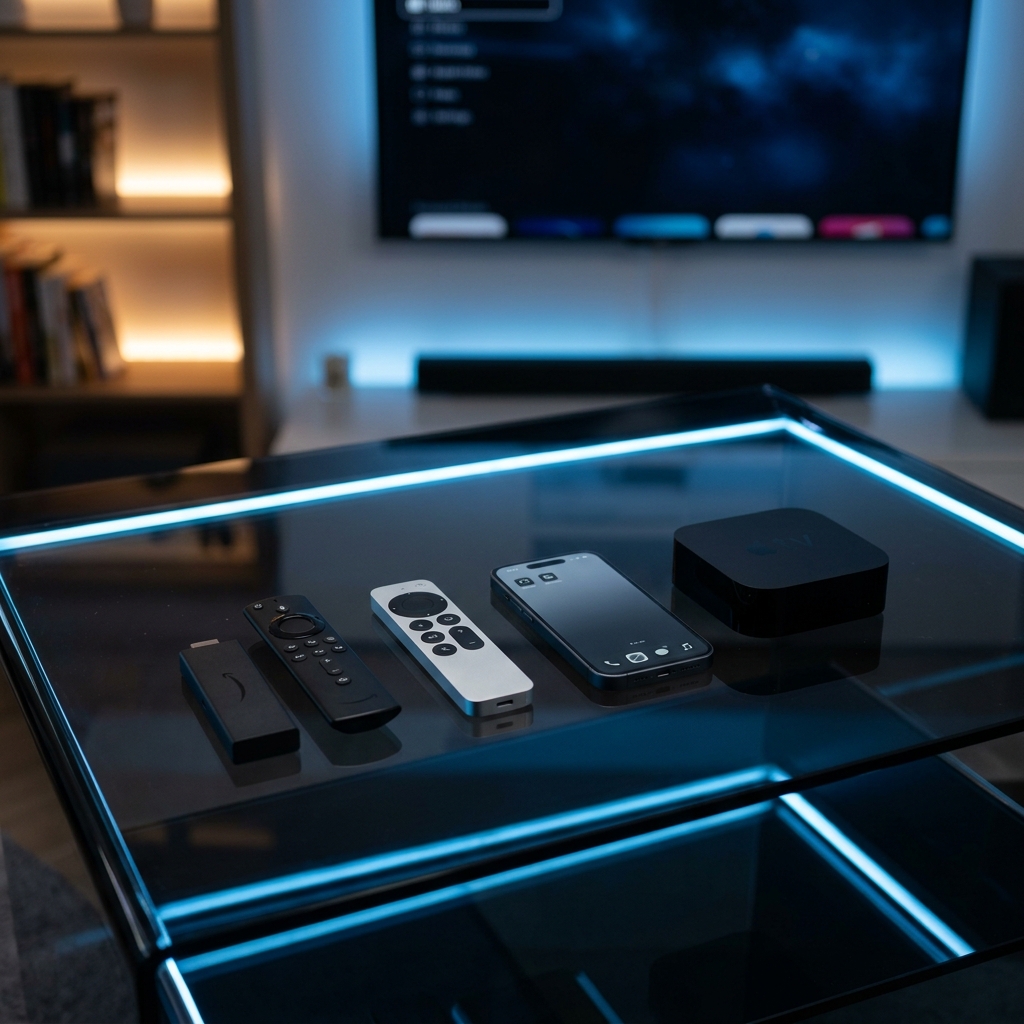
IPTV Smarters Pro remains the absolute favorite client app for IPTV users. However, many users do not optimize their app configurations, which can cause lag or visual delays. In this guide, we show you how to tweak your Smarters Pro settings for the ultimate 4K streaming experience.
Features Walkthrough:
IPTV Smarters Pro is more than just a media player; it is a full entertainment dashboard. The home screen is split into Live TV, Movies, Series, Catch-up, and EPG. It supports parent controls, multi-user profiles, speed tests, and external video players. By adjusting the settings below, you can maximize your app's performance.
1. Configure Xtream Codes API:
Always choose Xtream Codes login over M3U playlists if possible. The API handles video categorizations, search filters, and EPG layouts much more efficiently, speeding up data load times. The M3U files are static and do not update automatically when channels are added or moved.
2. Optimize Buffer Size:
If your internet connection fluctuates, navigate to Settings > Player Settings. Change the default buffer size from 0 to 1 or 2 seconds. This creates a buffer cushion that prevents freezing during high-action live sports broadcasts by downloading data packets in advance.
3. Select External Video Players:
If you experience sound-sync issues or video lag, try using an external player like VLC or MX Player. Go to Settings > External Players, click Add, and choose VLC. Then assign VLC as the default player for live channels and VOD. These players have advanced codecs that handle uncompressed 4K video feeds better than the built-in player.
4. Auto-Update EPG & Lists:
Navigate to Settings > General Settings and enable the options to auto-update playlists and EPG source data on startup. This guarantees you always have the latest channels list and accurate TV schedule schedules.
5. Configure Hardware Acceleration:
Under Player Settings, ensure Hardware Decoding is enabled. This forces the app to use your device's graphics chip (GPU) to decode the video stream instead of the main processor (CPU), which significantly reduces device overheating and UI lag.
Try Layerseven IPTV Risk-Free Today
Get instant activation and access to 50,000+ live feeds, complete PPV fights, and 200,000+ movies on demand in under 5 minutes with our stable servers.