📺IPTV for Smart TVs: The Ultimate Guide for LG & Samsung
Setup IPTV on your LG WebOS or Samsung Tizen Smart TV within minutes. Complete list of compatible applications, download links and portal setups.
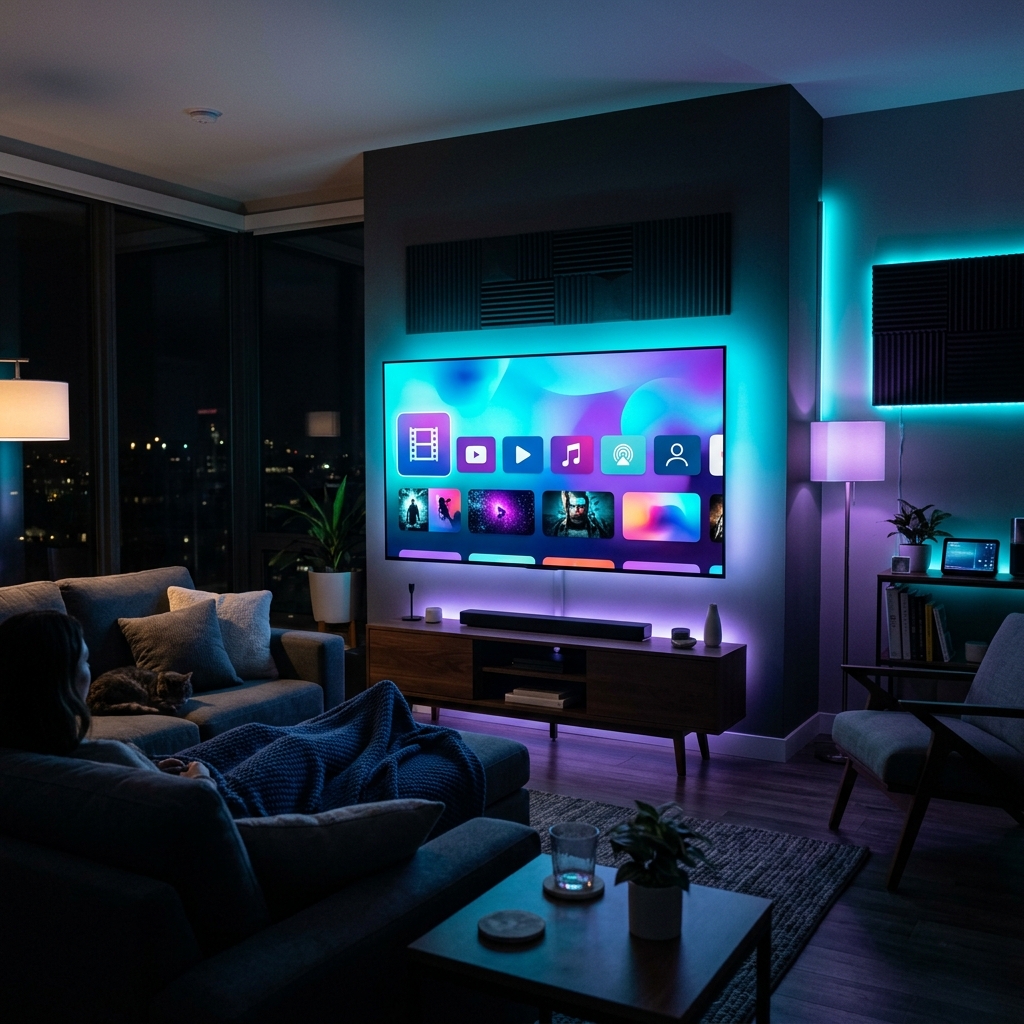
Streaming IPTV directly on your Smart TV (Samsung or LG) is the cleanest setup possible, as it eliminates the need for external HDMI streaming dongles or extra remote controllers. In this guide, we show you how to configure your Layerseven IPTV subscription on Samsung Tizen and LG WebOS TVs.
OS Limitations on Samsung and LG TVs:
Unlike Android-based TV boxes, Samsung TVs run Tizen OS and LG TVs run WebOS. This means you cannot download APK files directly from the web. You are limited to the applications approved in their official App Stores. Fortunately, several high-performance IPTV apps are available.
Step 1: Choose a Compatible App:
Open your TV App Store (LG Content Store or Samsung Smart Hub) and search for one of the following apps: **Smart ONE**, **IPTV Smarters Pro**, **Ib網絡Player**, or **Smart IPTV**. We highly recommend Smart ONE or Smarters Pro for their modern interfaces and speed.
Step 2: Install and Obtain MAC Address / Device Key:
Launch the installed application. Upon first opening, the app will display a unique MAC Address or Device Key (e.g. `00:1A:79:XX:YY:ZZ`). Write this down carefully, as you need it to upload your channels playlist.
Step 3: Load the M3U Playlist to the App Server:
Go to the app's official website (e.g., `smartone-iptv.com` or `siptv.app`) on your computer or phone. Enter your TV's MAC Address, then paste the M3U Playlist Link issued to you by Layerseven IPTV, and click Upload. The app server will process the list and link it to your TV.
Step 4: Restart the App on your TV:
Go back to your Smart TV, restart the application, and let it fetch the compiled channels and EPG details. You can now use your standard TV remote to navigate categories and play streams.
Network Optimization for TV Streaming:
Smart TVs often have weaker WiFi chips than external streaming sticks. To avoid buffering on 4K feeds, connect your TV directly to the router using a physical LAN Ethernet cable. If using WiFi, ensure the TV is connected to the 5GHz frequency band and is positioned within line-of-sight of your router.
Try Layerseven IPTV Risk-Free Today
Get instant activation and access to 50,000+ live feeds, complete PPV fights, and 200,000+ movies on demand in under 5 minutes with our stable servers.